Minimalist Editable Vector Maps for Infographics: A 2026 Cartography Design Guide
Minimalist maps are everywhere in 2026. From data rich news stories to brand infographics on social media, designers are stripping maps back to their essentials so that the story can breathe.
For teams that work with editable vector maps, this is good news. A clean, well structured vector basemap gives you the flexibility to design for many different formats, while still keeping files light and easy to edit.
This guide walks through how to use editable vector world and regional maps from One Stop Map to build clear, modern infographic maps in Adobe Illustrator. We will look at current design trends, how to pick the right basemap, and a practical workflow you can reuse on your next project.
Why minimalist vector maps work so well in infographics
When your map lives inside an infographic, it is rarely the only element on the page. You will have charts, icons, headlines, maybe even a photo or two. The basemap has to support all of that without shouting for attention.
Minimalist vector maps are a good fit because they:
Reduce cognitive load. Unnecessary lines, textures, and labels are removed, which helps readers focus on the message of the graphic instead of trying to parse every geographic detail.
Direct attention to data. With a quiet background, your color coding, symbols, and annotations do the talking. The reader immediately understands where to look.
Scale cleanly across formats. Vector geometry stays crisp on a phone screen, a website, or a large print layout. You can export multiple sizes from the same Illustrator file.
Adapt to your brand. Because fills, strokes, and labels are editable, you can apply your own color palette and typography without fighting against baked in design choices.
The key is to start from a basemap that is already well organized, then simplify only as far as the story allows.
Infographic map design trends in 2026
Several visual trends have become common in editorial and brand map design. You can combine these with vector basemaps from One Stop Map to create results that feel current without being trendy for the sake of it.
Neutral backgrounds with focused accents
Most successful infographic maps use calm background colors. Think warm light greys, soft beige, or very pale blues. Important regions or data overlays then pop in one or two accent colors.
This approach keeps the overall composition quiet while still giving you strong hierarchy. It also works well when you have to place charts or text blocks on top of the map.
Subtle relief and texture
Shaded relief and textures are still used in 2026, but very lightly. Instead of loud, high contrast hillshades, designers prefer soft gradients, faint contour inspired lines, or simple water textures.
If you want to explore the impact of different base styles, the blog post Two new styles: Formal and Naturalist is a helpful reference. It shows how different visual treatments can change the mood of a map while still coming from the same underlying data.
Editorial storytelling and annotations
Infographic maps are no longer just colored countries. They work as stories. You will see:
Short, well written annotations next to regions of interest
Simple arrows or leader lines that guide the eye
Small inset maps for context, like a globe that highlights the focal region
Your vector basemap is the stage. The story comes from the words and the way you point to specific places.
Accessible color and inclusive design
Accessibility is part of mainstream map design now. Palettes are chosen for contrast, not just style. Designers test how their maps look for different types of color vision and avoid relying only on color to carry meaning.
For infographic work, that often means:
Combining color with patterns or icons for key categories
Checking contrast ratios between background and labels
Keeping type sizes generous, especially in dense layouts
Choosing the right editable vector map for your story
Before you open Illustrator, decide what your map really needs to show.
World, regional, or local scale
World scale. Use a world map when the story is about patterns between continents or many countries at once. A product such as the World Continents political vector map gives you a clean, political overview that you can style to match your infographic.
Regional scale. For stories about trade routes, migration, or environmental topics in specific areas, a focused regional map often reads better than the whole globe. For example, Middle America or the Mediterranean work well as self contained panels.
Local scale. City or province level maps are best when the reader needs to see detailed spatial relationships, such as neighborhoods or districts.
Choosing the right scale keeps the basemap simple by design, since you only include geography that supports the narrative.
Political, physical, or hybrid basemaps
Think about what information matters most:
Political maps emphasize borders, country names, and administrative areas. These are ideal for policy, economic, and demographic stories.
Physical maps lean on relief and natural features. They work for climate, conservation, and tourism topics.
Hybrid maps combine just enough political and physical detail to avoid clutter while still feeling grounded in reality.
Editable vector maps from One Stop Map make it easy to toggle layers on or off, so you can move along that spectrum. You might keep coastlines, lakes, and a few major rivers, but remove minor borders and settlements.
Projection and distortion
Even in minimalist designs, projection choices matter. A familiar compromise projection, such as Robinson or Winkel Tripel, feels natural to most readers and avoids extreme distortion.
If your infographic compares areas or distances, consider how the chosen projection will influence perception. In many cases, sticking to a well known projection is the most reader friendly option.
Working with editable vector maps in Adobe Illustrator
Once you have downloaded your basemap, you can start shaping it to fit the infographic.
Get to know the layer structure
Quality vector maps ship with a logical layer system. Take a moment to explore it.
Turn layers on and off to see what they contain.
Rename any layers or groups that you plan to reuse often.
Lock background or reference layers so that you cannot move them by accident.
This minute of housekeeping will save you time later when the file becomes more complex.
Simplify geometry without losing meaning
Minimalist maps remove detail that does not support the story. Typical simplifications include:
Hiding very small islands that do not affect the message
Removing minor rivers or lakes
Merging tiny administrative units into a single shape when they are not referenced in the text
Because your basemap is vector based, you can always duplicate the original layer before simplifying, then keep that copy hidden as a safety net.
Style fills, borders, and water
Set up a small style system inside your document.
Choose one base fill for land, one for water.
Use a single stroke color for coastlines and borders, adjusting stroke weight to create hierarchy.
Keep the number of base colors low, then reserve strong accents for your data overlays.
Global color swatches in Illustrator help you adjust the entire palette later without reselecting objects.
Add labels sparingly
Labels are important, but they can overwhelm a minimalist design if you add too many.
Label only the geographic features that are referenced in the story.
Use a clear, legible typeface that fits your brand.
Create a type hierarchy: larger for the title and key regions, smaller for supporting labels.
For inspiration on how different label styles can change the feel of a map, the article Two new styles: Formal and Naturalist is worth another look, especially the examples of type treatment.
Overlay your own data
With the basemap styled, bring in the data that turns it into an infographic.
Use simple shapes for point data, such as circles or icons.
Apply consistent color coding for categories.
Add short annotations instead of long paragraphs; keep the writing tight.
Groups and layers are your friends here. Keep data overlays on separate layers from the basemap so that edits stay manageable.
Layout tips for editorial and infographic maps
Even a beautifully styled map can feel off if the layout does not support it.
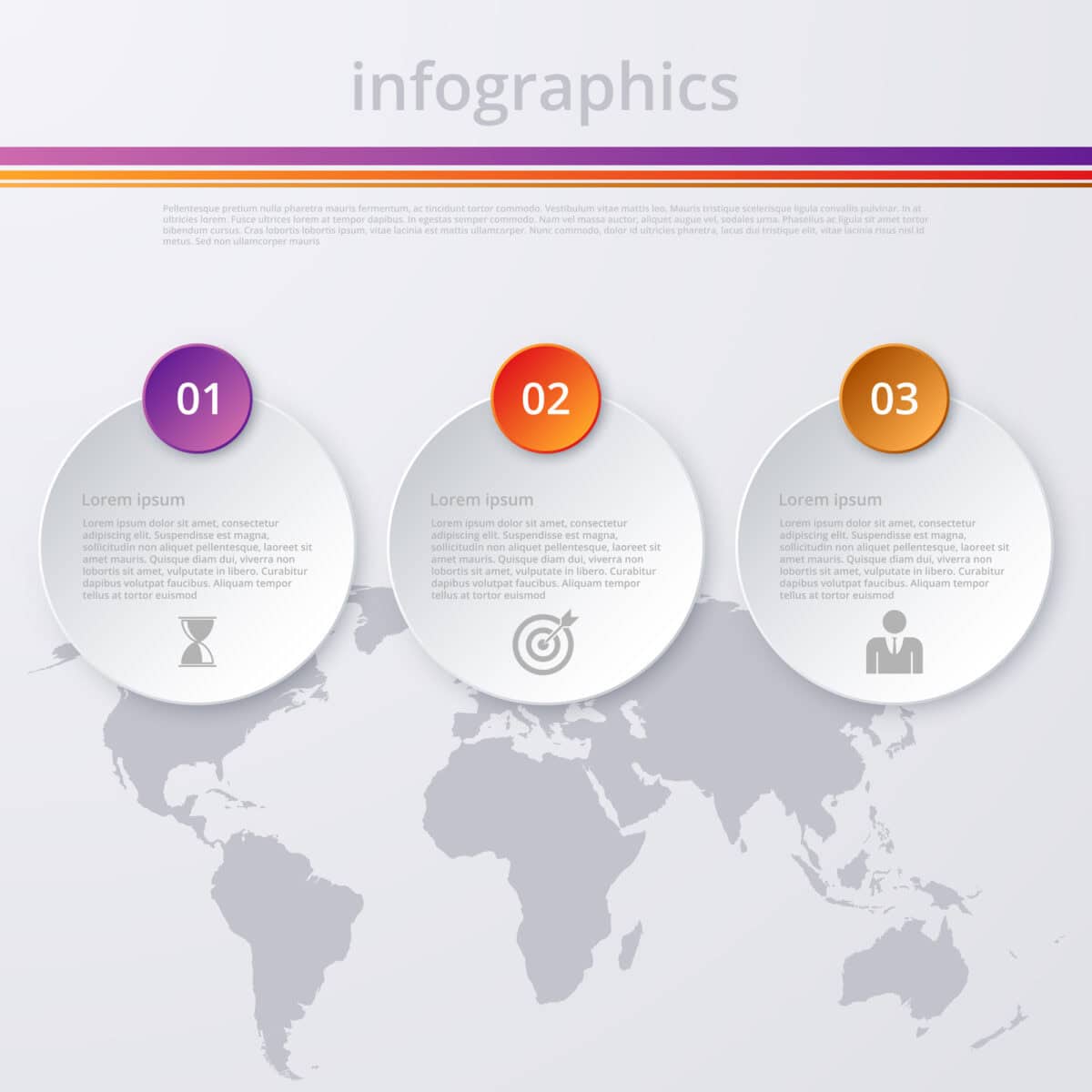
Vector illustration infographics Timeline circle.
Pick the right aspect ratio
Think about where the map will live.
Social posts often favor square or vertical formats.
Blog headers and online articles tend to use 16:9 or 3:2 layouts.
Print spreads might need a wide horizontal rectangle.
Designing inside the final aspect ratio from the start helps you avoid awkward cropping later.
Use white space generously
Minimalist design is not only about removing elements, it is also about giving the remaining elements room to breathe.
Leave comfortable margins around the map.
Avoid placing dense text directly on busy geographic areas.
Use alignment and grids so that maps, charts, and text blocks feel related.
Build a clear type hierarchy
Readers should understand the structure of the infographic at a glance.
One strong title that explains the story
A subtitle that adds context or a time frame
Consistent label sizes for geography and data
You can keep type sizes relatively large because the basemap itself is quiet and does not compete.
A practical workflow checklist for your next infographic map
Here is a simple checklist you can adapt for your own projects.
Clarify the story. Write one sentence that captures what the reader should learn from the graphic.
Choose the scale and projection. Decide if you need a world, regional, or local map and pick a projection that supports the story.
Select a basemap. Download an editable vector map from One Stop Map that fits your needs, for example a world continents political map or a focused regional product.
Explore the layers. Open the file in Illustrator, review the layer structure, and make a backup layer before editing.
Simplify detail. Hide or merge geographic features that do not support the story.
Define your palette. Set up global swatches for land, water, borders, and accents that match your brand and accessibility needs.
Style the basemap. Apply your fills, strokes, and minimal textures. Keep the background calm.
Add data overlays. Import your data, create symbols, and apply consistent color coding.
Write annotations. Add short, clear notes and labels where they help readers understand change or contrast.
Refine the layout. Adjust aspect ratio, spacing, and type hierarchy so the map sits comfortably with any charts or text.
Export for each channel. Export optimized files for web, social media, and print from the same master Illustrator document.
By following a repeatable workflow, you build a library of reusable assets and map files that save time on future projects.
To provide the best experience, we use technologies such as storing cookies. Approving these technologies ensures that we can give you that best experience. Ignoring cookies may result in some features not working as intended.
functional cookies
Always active
The technical storage or access is strictly necessary for the legitimate purpose of enabling the use of a specific service explicitly requested by the subscriber or user, or for the sole purpose of carrying out the transmission of a communication over an electronic communications network.
Preferences
The technical storage or access is necessary for the legitimate purpose of storing preferences that are not requested by the subscriber or user.
Statistics
The technical storage or access that is used exclusively for statistical purposes.The technical storage or access that is used exclusively for anonymous statistical purposes. Without a subpoena, voluntary compliance on the part of your Internet Service Provider, or additional records from a third party, information stored or retrieved for this purpose alone cannot usually be used to identify you.
Marketing
The technical storage or access is required to create user profiles to send advertising, or to track the user on a website or across several websites for similar marketing purposes.
We use cookies to optimize our website and our service.
functional cookies
Always active
The technical storage or access is strictly necessary for the legitimate purpose of enabling the use of a specific service explicitly requested by the subscriber or user, or for the sole purpose of carrying out the transmission of a communication over an electronic communications network.
Preferences
The technical storage or access is necessary for the legitimate purpose of storing preferences that are not requested by the subscriber or user.
Statistics
The technical storage or access that is used exclusively for statistical purposes.The technical storage or access that is used exclusively for anonymous statistical purposes. Without a subpoena, voluntary compliance on the part of your Internet Service Provider, or additional records from a third party, information stored or retrieved for this purpose alone cannot usually be used to identify you.
Marketing
The technical storage or access is required to create user profiles to send advertising, or to track the user on a website or across several websites for similar marketing purposes.